
A good lead magnet on a content page has an awkward job. It has to be visible enough that interested readers notice it, but quiet enough that everyone else can keep reading. A full-screen modal fails the second test: it darkens the article and demands a decision. An inline box at the end of the post fails the first: most readers never get there.
A side drawer sits between the two. It slides in from the edge of the screen, leaves the article readable and usable behind it, and can be ignored without a single click. This guide sets one up with The field guide design from the WidgetJar popup builder, from the trigger to getting the guide into the reader's inbox.
What the drawer looks like
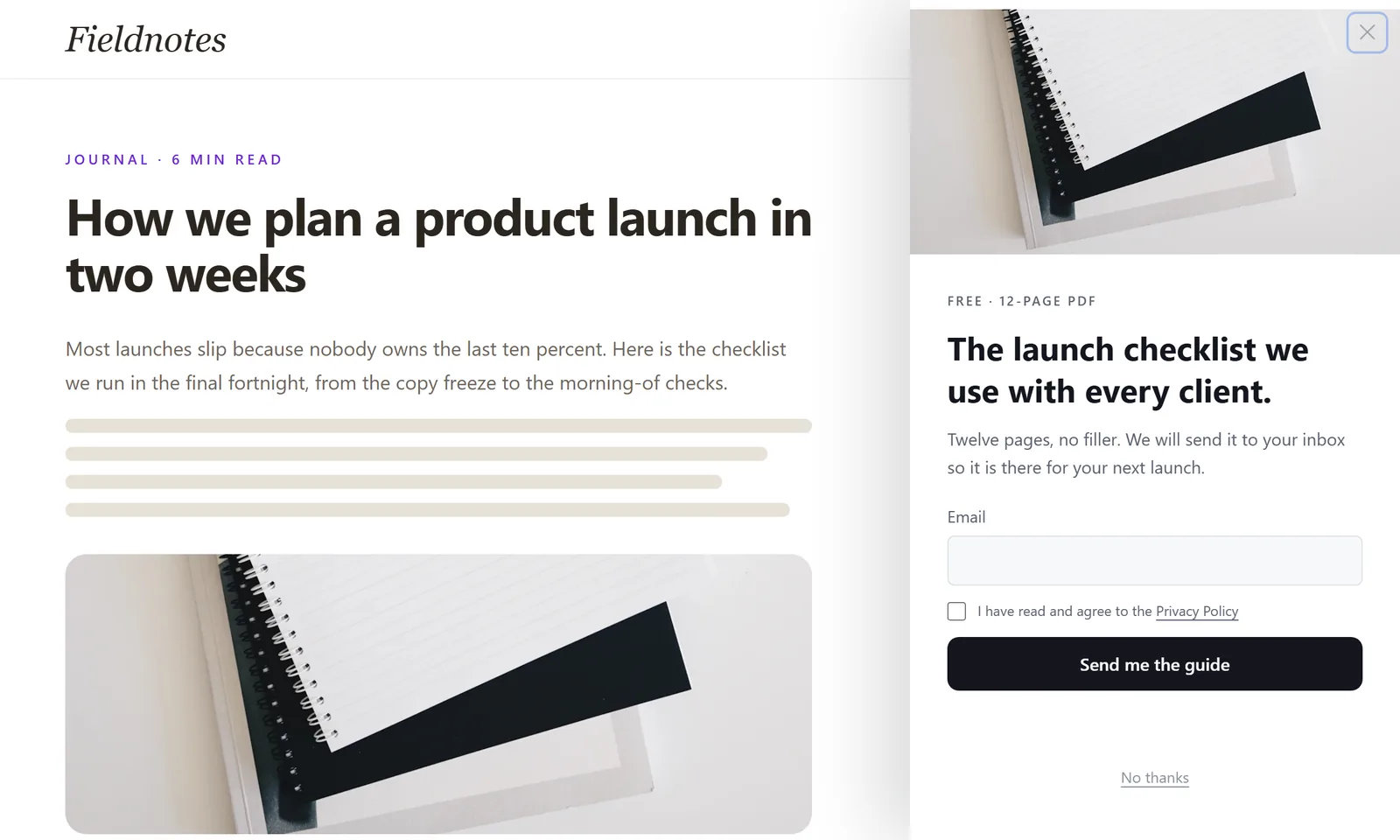
The design keeps everything a reader needs to decide in one narrow column:
- A photo that hints at the format. A notebook says "checklist" faster than a headline can.
- A specific promise. "The launch checklist we use with every client" beats "Download our free guide" because it says what is inside and why it is credible.
- The cost, stated plainly. "Free · 12-page PDF" in the eyebrow answers the two questions readers have before they type an email address.
- One field, one button, one way out. An email field, a consent checkbox, a submit button and a "No thanks" link.
The settings that make it unobtrusive
| Setting | Value | Why |
|---|---|---|
| Layout | Drawer | Slides in from the side instead of covering the page. |
| Show backdrop | Off | The article stays bright and clickable behind the drawer. |
| Trigger type | Scroll, at 60% | Readers who reach the second half of an article have shown real interest. |
| Include pages | /blog/* |
Keep the offer on content pages, where it matches what people came for. |
| Display policy | Once per session | A reader who ignored it on one article should not see it on the next. |
| Lead capture form | Ask for the one field you need to deliver the guide. | |
| Success message | "On its way. Check your inbox in a minute." | Confirms the request and sets the next expectation. |
| Dismiss link | "No thanks" | A visible way out, so ignoring the drawer is easy. |
Because there is no backdrop, the drawer does not trap the reader. They can keep scrolling, select text or click a link in the article, and the drawer waits at the side until they use it or close it.
Match the guide to the article
A launch checklist is a natural offer on a post about launches and an odd one on a post about pricing pages. If you have more than one guide, create one drawer per topic and use Include pages to scope each to the articles it belongs with, such as /blog/launch-* for one and /blog/pricing-* for another. Leave a general guide on /blog/* as the fallback only if it genuinely relates to most posts.
The scroll threshold deserves the same care. Sixty percent works on long guides. On short posts, the visitor may hit 60% almost immediately, so either raise the threshold or keep the drawer to your longer articles.
Get the guide to the reader
WidgetJar captures the email address and the consent the reader gave, then passes the submission on to the tools you connect. Delivering the file itself happens in your email tool, which is where it belongs, because that is also where unsubscribes and sending reputation are handled.
A simple setup with Mailchimp:
- Connect Mailchimp to the drawer's widget, so each submission adds the reader to your audience.
- In Mailchimp, create an automation that sends a welcome email with the download link to new subscribers from that source.
- Host the PDF somewhere with a stable URL, so the link in the email keeps working.
If you use a different email tool, connect Zapier or Make instead and add the subscriber from there. Either way, test the whole chain with your own address before publishing: submit the form, receive the email, open the link.
Consent, without the fine print
The drawer's email form includes a required consent checkbox linked to your privacy policy, so a submission only goes through once the reader has agreed. Set the Privacy Policy URL to your real policy page, and make sure the welcome email says what else, if anything, the reader will receive. Promising a checklist and then sending a weekly sales newsletter is the fastest way to collect unsubscribes and spam complaints.
Write the copy last
Once the mechanics work, spend your remaining time on the words. Three edits usually help:
- Replace adjectives with contents. "Twelve pages, no filler" or "The 23 checks we run before launch day" are more convincing than "ultimate" or "comprehensive".
- Say who it is for. "For small teams launching without a marketing department" filters in the readers you want.
- Keep the button specific. "Send me the guide" tells readers exactly what happens next; "Submit" does not.
Pre-launch checklist
- On a long article, scroll past 60%. The drawer slides in once, and the article stays usable.
- On a short article, check that the drawer does not appear before the reader has read anything.
- Submit your own email. The success message appears, and the welcome email with the link arrives.
- Try to submit without ticking the consent box. The form asks for consent first.
- Close the drawer and open another article in the same session. It stays closed.
- Reach every control in the drawer with the keyboard alone.
For more on choosing a trigger by page type, see Popup Timing: When to Show a Lead Capture Popup.
Where WidgetJar fits
The field guide is one of the designs in the WidgetJar popup widget. Start from it, swap in your own guide and photo, scope it to the right articles, and connect your email tool. The drawer goes live with a single script tag, and you can adjust the copy or threshold later without touching your site.

