
Picture a small ceramics shop. A visitor has two pieces in the cart, scrolls back up to the shipping note, and moves the cursor towards the tab bar. That is the moment an exit-intent popup exists for: one short, honest reminder that the cart is waiting, with a reason to come back now rather than never.
This walkthrough sets that reminder up with the Before you go design from the WidgetJar popup builder. It covers what the visitor sees, every setting that matters, the mobile fallback exit intent needs, and a checklist to run before you publish. The store in the screenshots is a sample, but the popup is the real widget rendering a real builder design.
What the visitor sees
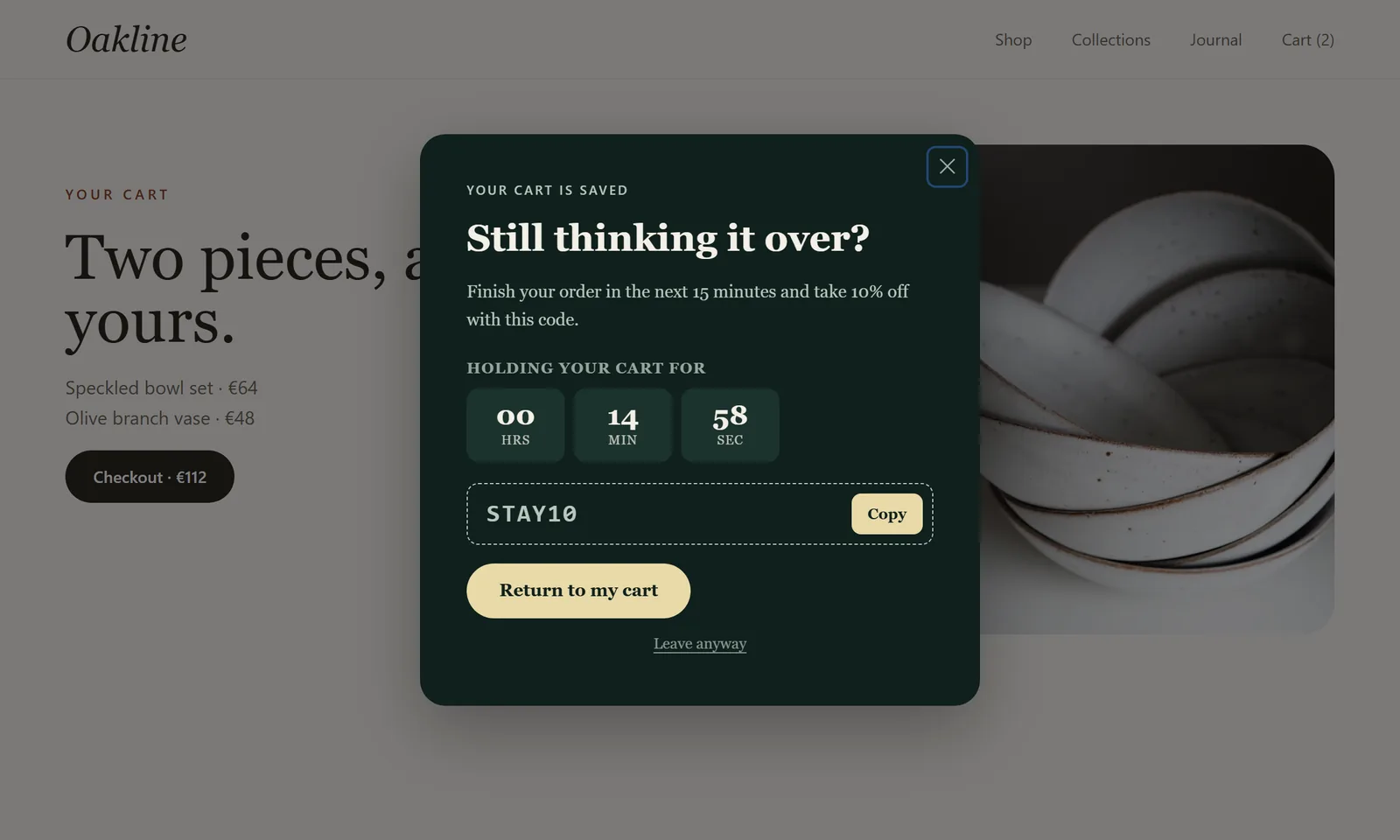
The design does four things and nothing else:
- Names the situation. "Your cart is saved" and "Still thinking it over?" tell the visitor exactly why the popup appeared.
- Shows a short, visible deadline. A 15-minute countdown makes the offer concrete.
- Hands over the code. The discount code sits in its own box with a one-click copy button, so nobody has to retype it at checkout.
- Offers one way back and one way out. "Return to my cart" leads back to the cart; "Leave anyway" closes the popup without guilt-tripping anyone.
Resist the urge to add a newsletter field, a product carousel or a second offer. A visitor on their way out will give you one decision, not three.
The settings, field by field
Start from the design in the popup builder, then check each setting below. The names match the labels in the builder.
| Setting | Value for this case | Why |
|---|---|---|
| Trigger type | Exit intent | Opens when the cursor leaves the top of the page, the usual sign someone is heading for another tab or the address bar. |
| Countdown timer | Per visitor, 15 minutes | Each visitor gets their own window, starting the first time they see the popup. |
| Discount code | STAY10 |
Must be a real code in your store. The popup shows and copies it; your store applies it. |
| One-click copy button | On | Saves a retype on mobile and avoids typos. |
| Display policy | Once every 24 hours | A visitor who closed it today should not see it on every page. |
| Include pages | /cart, /products/* |
Only people who have shown buying intent should see a cart reminder. |
| Exclude pages | /checkout/* |
Never interrupt someone who is already paying. |
| Device | Desktop | Exit intent is a pointer signal; mobile gets its own popup (see below). |
| Dismiss link | "Leave anyway" | A visible, polite exit is part of the design, not an afterthought. |
Point the button at your cart URL so "Return to my cart" does what it says.
Keep the urgency honest
A countdown is only persuasive if it is true. The per-visitor countdown starts the first time a visitor sees the popup and is remembered in their browser, so reloading the page does not reset it to 15 minutes. That behavior is deliberate: a timer that restarts on every visit teaches people to ignore timers.
Two rules keep it honest:
- Make the code expire in your store too. If the popup says 15 minutes, set a short expiry or a single-use limit on the discount in Shopify, WooCommerce or whichever platform you use. The popup cannot enforce your discount rules; only your store can.
- Let the deadline disappear when it is over. When the countdown reaches zero, the timer hides, and you can choose to close the popup instead. Do not reuse the popup with a fresh timer the next day for the same visitor; the 24-hour display policy above prevents that.
If you would rather not use a deadline at all, switch the countdown off. The design still works as a plain reminder with a code.
Give mobile visitors their own version
Exit intent relies on the cursor leaving the top of the browser window. Phones and tablets have no cursor, so an exit-intent popup will simply not fire on touch devices. That is fine, as long as you know it and plan for it.
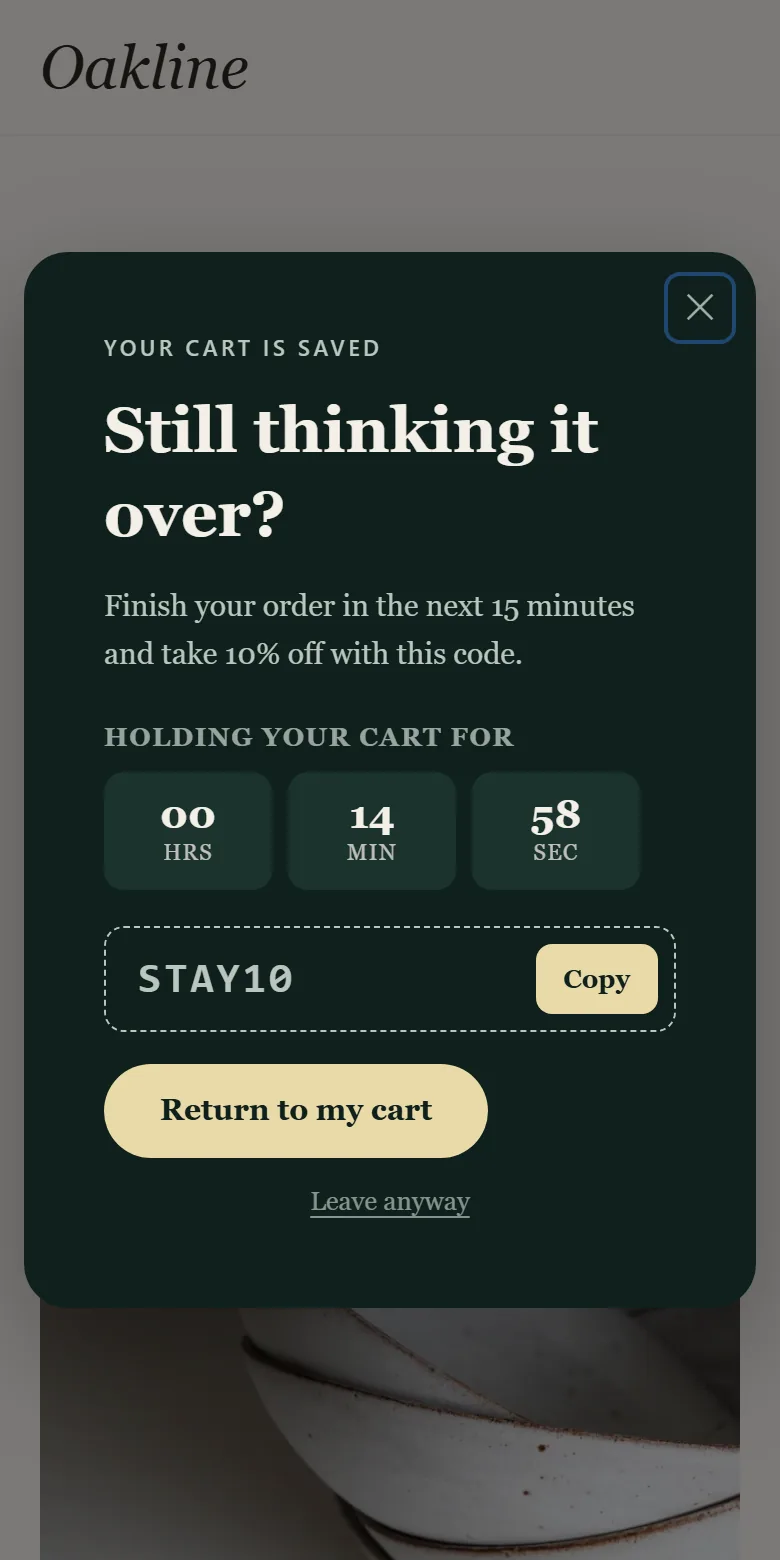
Duplicate the popup and change only three settings:
- Device: Mobile.
- Trigger type: User inactivity, with an inactivity duration of around 20 to 30 seconds on the cart page. Scrolling, tapping and typing all count as activity, so the popup waits until the visitor has genuinely paused.
- Copy: Swap "Still thinking it over?" for something that does not imply they are leaving, such as "Need a moment?"
Keep the include and exclude rules identical, so both versions only ever appear on product and cart pages.
Check it before you publish
Run through this list on a real browser, not just the builder preview:
- On desktop, move the cursor slowly to the tab bar from the cart page. The popup opens once.
- Close it, reload, and leave again. It does not reappear within 24 hours.
- Copy the code from the popup and paste it at checkout. The discount applies.
- Wait out the countdown. The timer disappears and the discount has actually expired in your store.
- Visit a checkout page and try to leave. Nothing opens.
- On a phone, pause on the cart page. The mobile version opens; the desktop one never does.
- Open the popup with the keyboard only. Focus lands inside it, Escape closes it, and focus returns to the page.
For the keyboard checks in more depth, the Accessible Popup Checklist: Keyboard and Focus for Lead Capture walks through each step. If you are still deciding whether exit intent is the right trigger for a page, Popup Timing: When to Show a Lead Capture Popup compares the options.
What to watch after launch
Two numbers tell you most of what you need. Your WidgetJar analytics show how often the popup was seen and how often its button was clicked, and your store's discount report shows how many orders actually used STAY10. If plenty of people see the popup but few click back to their cart, the offer or the headline is not landing. If clicks are healthy but the code rarely appears on orders, check that it works on every product the popup is shown for.
Change one thing at a time, such as the headline, the discount or the countdown length, and give each change at least a couple of weeks before judging it.
Where WidgetJar fits
The Before you go design is one of the starting points in the WidgetJar popup widget. You adjust the words, colors and rules in the builder, add one script tag to your store, and every later change goes live without touching your theme again. Start from the design, set the rules above, and run the checklist before your next sale.
