
Plenty of contact forms work perfectly and still lose leads. The form submits, the platform sends an email, and the email lands in a shared inbox that someone checks on Thursdays. The fix is not a new form. It is getting each submission in front of the team the moment it arrives.
This guide connects an existing contact form to Slack with the WidgetJar Detected Form widget. The form keeps its design, its fields and whatever already happens when it is submitted. WidgetJar listens for the submission, adds a consent checkbox, and forwards what it captured. The steps are the same whether the form lives on Webflow, Wix, WordPress, Squarespace or a hand-written HTML page.
What gets captured
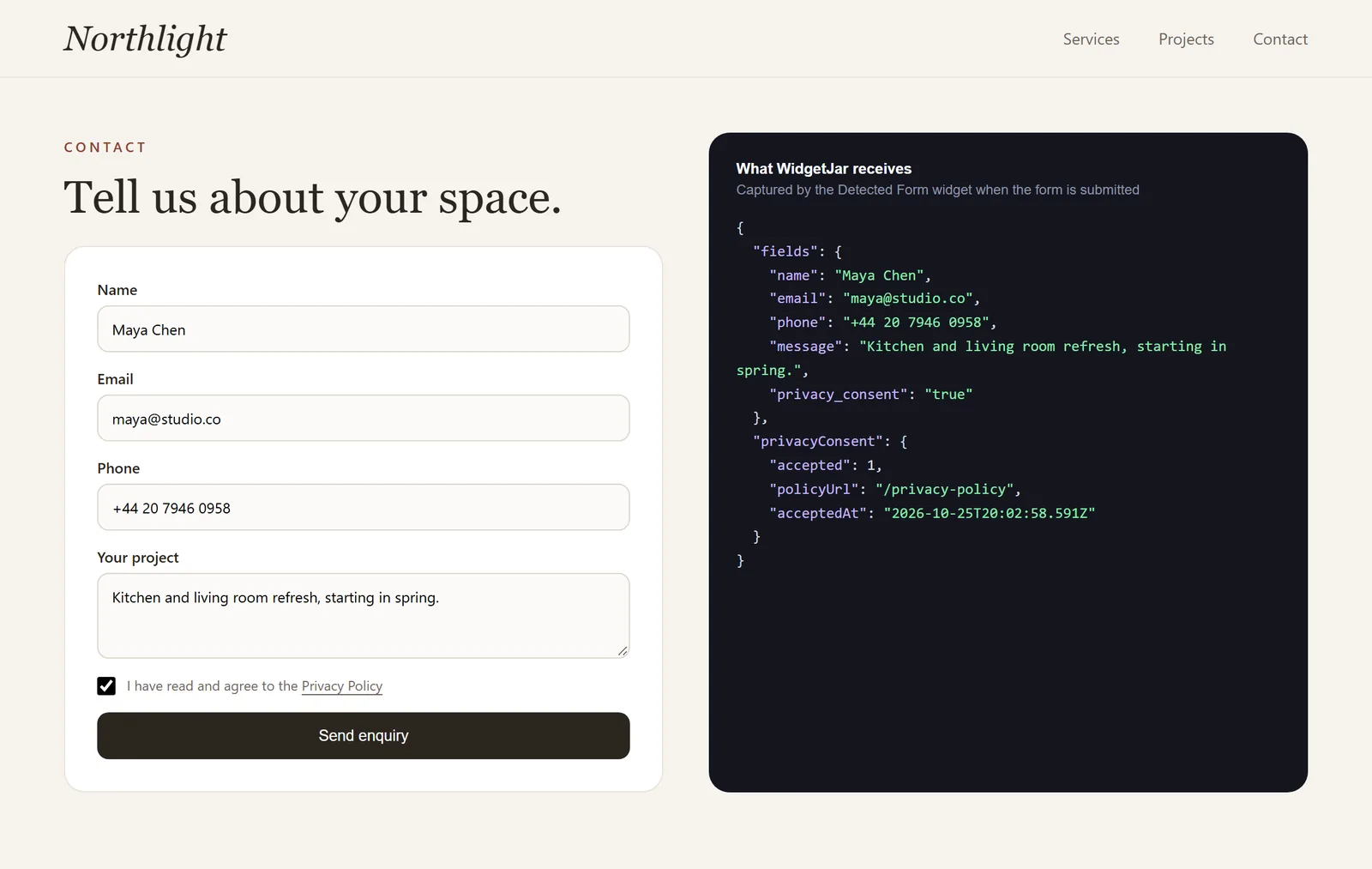
The panel on the right shows what the widget receives when the form on the left is submitted. Each field is keyed by its HTML name. If a field has no name, the widget falls back to its id, and then to a positional key. The submission also records that consent was given, which policy it referred to, and when.
Step 1: Choose the form
Create a Detected Form widget and set the Form selector. You can pick the form in the site preview inside the builder, or type a CSS selector such as #contact-form or form.newsletter.
Use the most specific selector you can. The default, form, matches every form on every page where the embed runs, including search boxes and login forms. A selector that targets one form keeps everything else out.
If your form is rendered after the page loads, for example inside a modal or a page builder's lazy section, leave Observe dynamically added forms on. The widget then also picks up forms that appear later.
Step 2: Decide what happens to the original submission
Under Capture behavior, set Capture when to Form is submitted. Then look at Prevent original submission:
- Leave it off if your platform already handles the form. Webflow, Wix and most form plugins keep sending their own notifications and storing entries, and WidgetJar captures a copy on the side. This is the safest setting for a form that works today.
- Turn it on only when the form has nowhere real to post to, such as a static or AI-generated page whose form points at a placeholder. WidgetJar then captures the submission and stops the browser from navigating to a broken URL. How to Make an AI-Generated HTML Form Work (No Backend Needed) covers that case in detail.
Step 3: Set up consent
The widget adds a required, unchecked consent checkbox just before the form's submit button, linked to your privacy policy. Nothing is captured until the visitor ticks it. In the builder:
- Set Privacy Policy URL to your real policy page.
- Adjust Consent text if your policy or language needs different wording.
The checkbox and its link follow the surrounding text color, so they read as part of your form rather than a bolted-on extra.
Step 4: Trim the fields you do not want
By default the widget captures every eligible field. Two lists let you narrow that down:
- Excluded field names removes specific fields, such as an internal tracking field or a honeypot.
- Included field names does the opposite: only the listed fields are captured.
Some fields are never captured, whatever these lists say: password inputs, fields marked with card-related autocomplete values, and fields whose name or id refers to passwords, card numbers or security codes. Hidden inputs are excluded by default too. For file inputs, only the file name is recorded, never the file.
Step 5: Connect Slack
In the widget's integrations, add Slack and paste an Incoming Webhook URL for the channel that should receive leads. You create that URL in Slack under your app's Incoming Webhooks settings. Each submission then posts to the channel as a "New Widget Submission" message listing the submitted fields and their values.
Slack is the fastest way to get eyes on a lead, but it is not a database. Every submission also stays in your WidgetJar dashboard, and you can add a second integration, such as Zapier to a spreadsheet or CRM, alongside Slack.
Step 6: Publish and test
Add the WidgetJar embed script to your site, publish the widget, and test with a real submission:
- Fill the form on the live page. A consent checkbox appears before the submit button.
- Submit without ticking it. The browser asks for consent and nothing is captured.
- Tick it and submit. The message appears in Slack within moments, and in the dashboard.
- Check that your platform's own notification still arrives, if you left original submission on.
- Confirm that excluded fields are missing from the Slack message.
- Submit a different form on the same site, such as a search box. Nothing is captured from it.
If a field arrives with a generic positional key, give it a name attribute in your form builder; most platforms expose this as the field name or ID. Clear names make the Slack message readable at a glance, and HTML Form Labels: Write Clear Fields for Lead Forms helps with the visible labels too.
Where WidgetJar fits
The Detected Form widget connects the forms you already have to WidgetJar, adds consent, and forwards each submission to Slack, Discord, Mailchimp, Zapier, Make, n8n or a webhook. Your site keeps control of how the form looks and behaves; WidgetJar makes sure someone sees every submission.